Guides
How to Send Text From Computer: 5 Ways for PC and Mac
How to send text from computer with your own number: Google Messages for Web, Phone Link, Messages on Mac, and an SMS API for business texts.
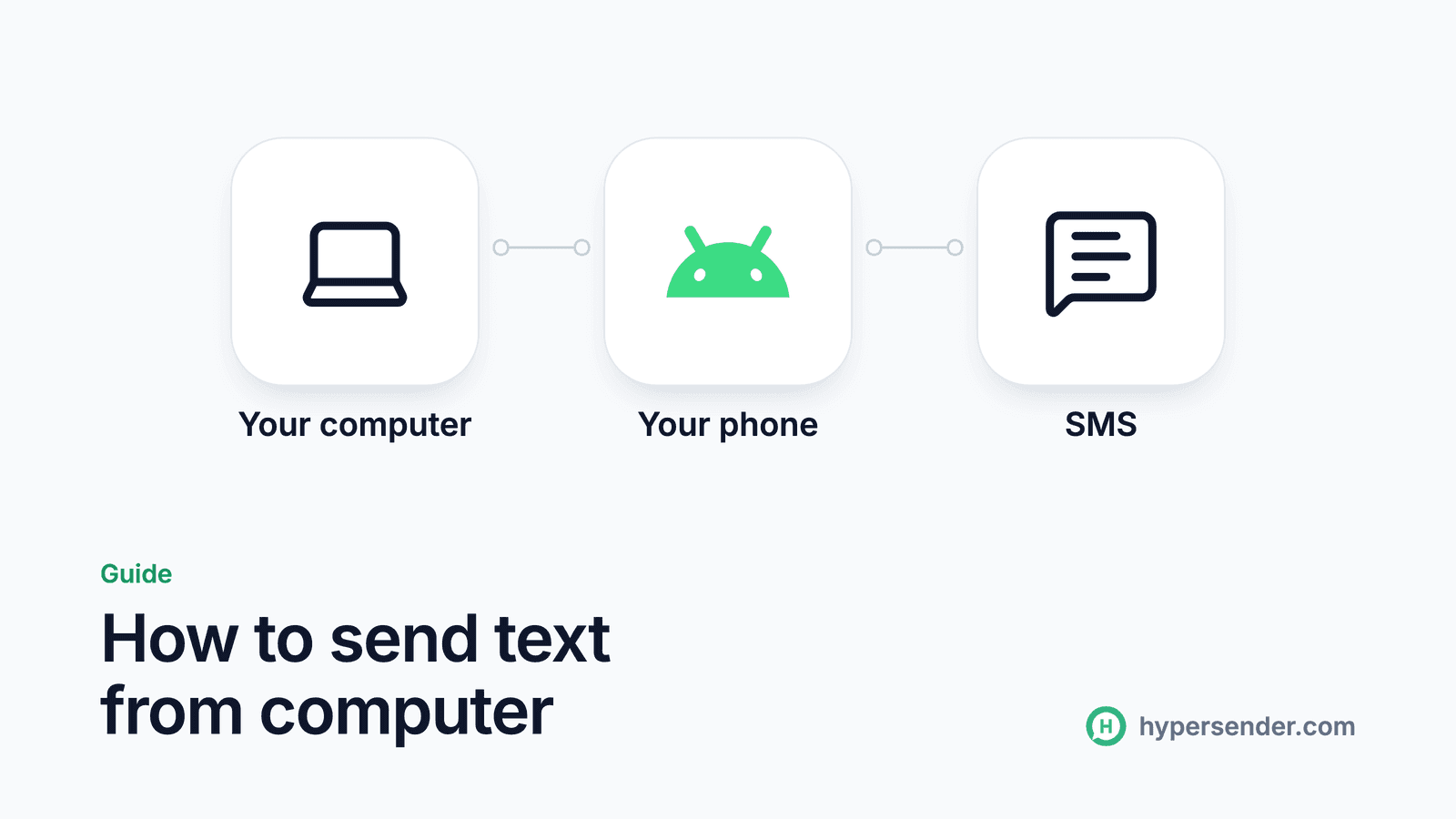
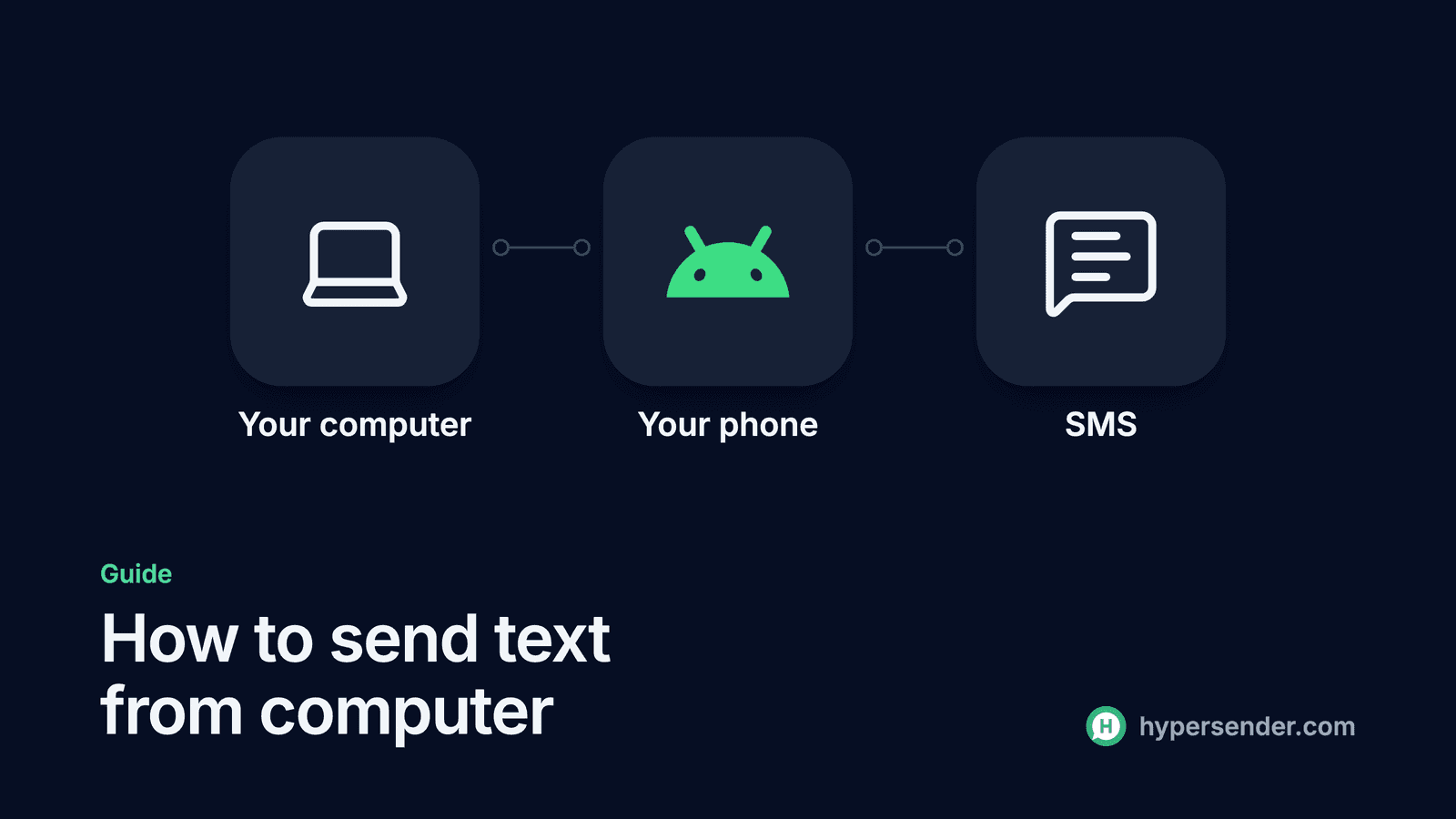
How to send text from computer depends on two things: which phone you have, and who the texts are for, a friend or your customers. For personal texts, the free tools from Google, Microsoft and Apple mirror your phone on the computer. For business texts, an SMS API sends from your own number without anyone typing each message, and you can try it free for 28 days.
Every method below sends from your real phone number, so replies come back to you. None of them needs a "free SMS" website with a shared number.
Which method to use
| Your setup | Method | Cost |
|---|---|---|
| Android phone, any computer | Google Messages for Web | Free |
| Android phone, Windows PC | Phone Link | Free |
| iPhone and a Mac | Messages with Text Message Forwarding | Free |
| Business texts sent from your app or a script | SMS API through your own Android phone | 28-day free trial, then $7.99 a month per phone |
| Asking an AI assistant to send the text | MCP server connected to your phone | Same SMS plan |
1. Google Messages for Web (Android, any computer)
If your Android phone uses Google Messages as its texting app, you can send texts from any browser.
- On the computer, open messages.google.com/web.
- On the phone, open Google Messages, tap your profile picture, then Device pairing, and scan the QR code on the screen.
- Your conversations appear in the browser. Type a number or a contact name to start a new text.
The phone needs to stay on and connected. Texts still go out through its SIM, at your plan's rates.
2. Phone Link (Windows PC)
Phone Link comes with Windows 10 and 11. Pair it with the Link to Windows app on an Android phone, then open Messages in Phone Link to read and send texts from the PC. It also connects iPhones, with fewer messaging features, so iPhone owners with a Mac are better served by the next method.
3. Messages on a Mac (iPhone)
With an iPhone, a Mac can send regular SMS to Android users, not only iMessages.
- Sign in to the same Apple Account on the iPhone and the Mac.
- On the iPhone, turn on Text Message Forwarding in the Messages settings and select your Mac.
- Open Messages on the Mac and start a conversation. Green bubbles go out as SMS through the iPhone.
4. Send business texts from your computer with an SMS API
The three methods above suit personal texts, one at a time. Businesses usually need something else: texts that go out on their own when an order ships or a code is requested, and the same reminder to a list of customers.
An SMS API does this. With Hypersender, an Android phone with your business SIM becomes the gateway, and anything on your computer that can make an HTTP request can send a text:
curl -X POST "https://app.hypersender.com/api/sms/v1/{instance}/send-message" \
  -H "Authorization: Bearer <api-key>" \
  -H "Content-Type: application/json" \
  -H "Accept: application/json" \
  -d '{"to": "+12025550147", "content": "Hi Sam, your order #1042 is ready for pickup."}'
That works from a terminal, a script, your own app, or a no-code tool such as n8n, Make or Zapier. Some details that matter for business texts:
- Texts go out from your own number, and replies come back to a webhook as well as to the phone.
schedule_send_atsends a text later, up to 3 days ahead in the phone's time zone.- A
request_idstops a retried job from sending the same text twice. - Long messages are split into parts automatically. The SMS character counter shows how many parts a message needs.
Setup takes a few minutes: create an SMS instance, install the Hypersender SMS app on the phone, and scan the QR code. The Android SMS gateway guide walks through it.
5. Ask your AI assistant to send the text
If you use Claude, ChatGPT or Cursor on your computer, you can connect them to the Hypersender MCP server and ask in plain words: "Text +1 202 555 0147 that the meeting moved to 3 pm." The assistant sends it through your phone on the same SMS plan, and can also schedule it for later.
Ask it to show the number and the text before it sends, the same way you'd check a message you typed.
What it costs
Google Messages for Web, Phone Link and Messages on a Mac are free. Each text is billed by your carrier the same way as a text sent from the phone.
For business sending, the Hypersender SMS plan has a 28-day free trial with up to 100 messages a day. After that it's $7.99 a month per phone, with no fee per message, and your carrier bills each text on your plan. More on that in our free SMS API guide.
Which one should you use?
For texting friends and family from your desk, use whichever free tool matches your phone. For texts your business sends again and again, or sends because something happened in your system, use an SMS API so nobody has to type them.