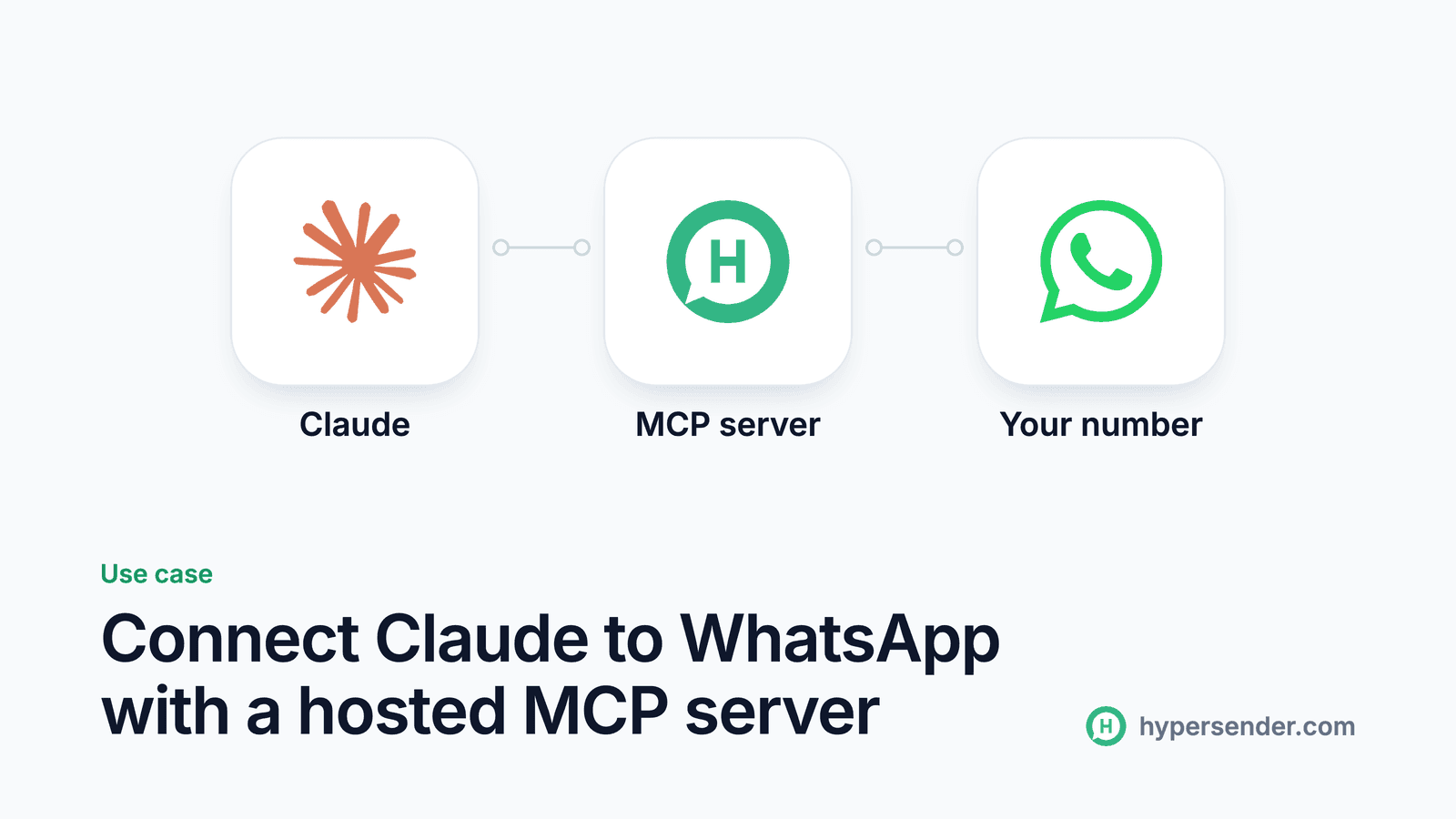
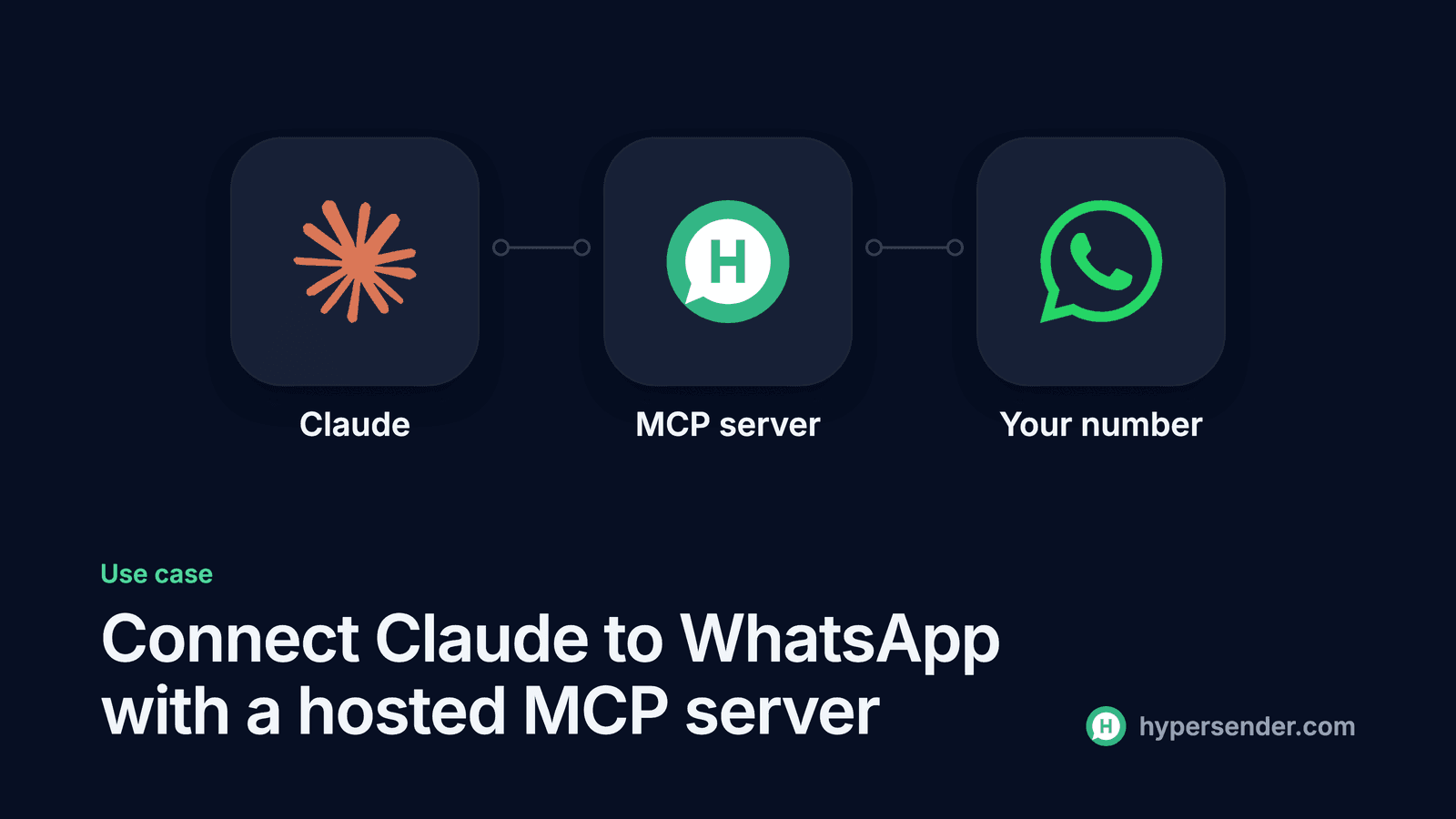
How this workflow fits
Add the connector in Claude
In Claude on the web or in the desktop app, open Customize, then Connectors, and choose Add custom connector. Name it hypersender and enter https://app.hypersender.com/mcp. A Hypersender window opens where you sign in and choose the instances and permissions Claude may use.
- In Claude Code, run claude mcp add --transport http hypersender https://app.hypersender.com/mcp, then type /mcp and pick Hypersender to sign in.
- On Claude Team and Enterprise plans, an admin may need to add the connector.
- These are Claude's standard custom connector steps. We have tested the server end to end with Codex, and not yet with Claude.
What Claude can do with your number
Every tool needs a permission you granted and an instance you approved at sign-in. The server can't read your chat history. Its tools send messages and report what happened to them.
- Send text, images, files, polls and locations from your WhatsApp number.
- Check a request by its UUID. Queued means Hypersender accepted the message, not that WhatsApp delivered it.
- Check whether a number is on WhatsApp, and list the contacts on an instance.
- Send or schedule SMS from a linked Android phone, and request OTP codes over WhatsApp or SMS.
- List the webhooks on an instance, or create one.
Prompts to start with
Start with a prompt that changes nothing, then send one message to your own number. Write the recipient as the country code and number, digits only.
- "Using hypersender, list my approved instances. Do not send anything."
- "Using hypersender and my Sales instance, send 'Hello from Hypersender' to 201000000002. Show me the sender, recipient and exact message before sending. Send once."
- "Using hypersender, check request <request UUID>."
- Change or revoke Claude's access under Management, then MCP, then Connected assistants in the Hypersender dashboard.