Developer guides
WhatsApp MCP: Connect Claude, Cursor and ChatGPT
WhatsApp MCP setup for Claude, Cursor, ChatGPT and Codex: add the Hypersender server, pick its permissions, and send WhatsApp from chat.
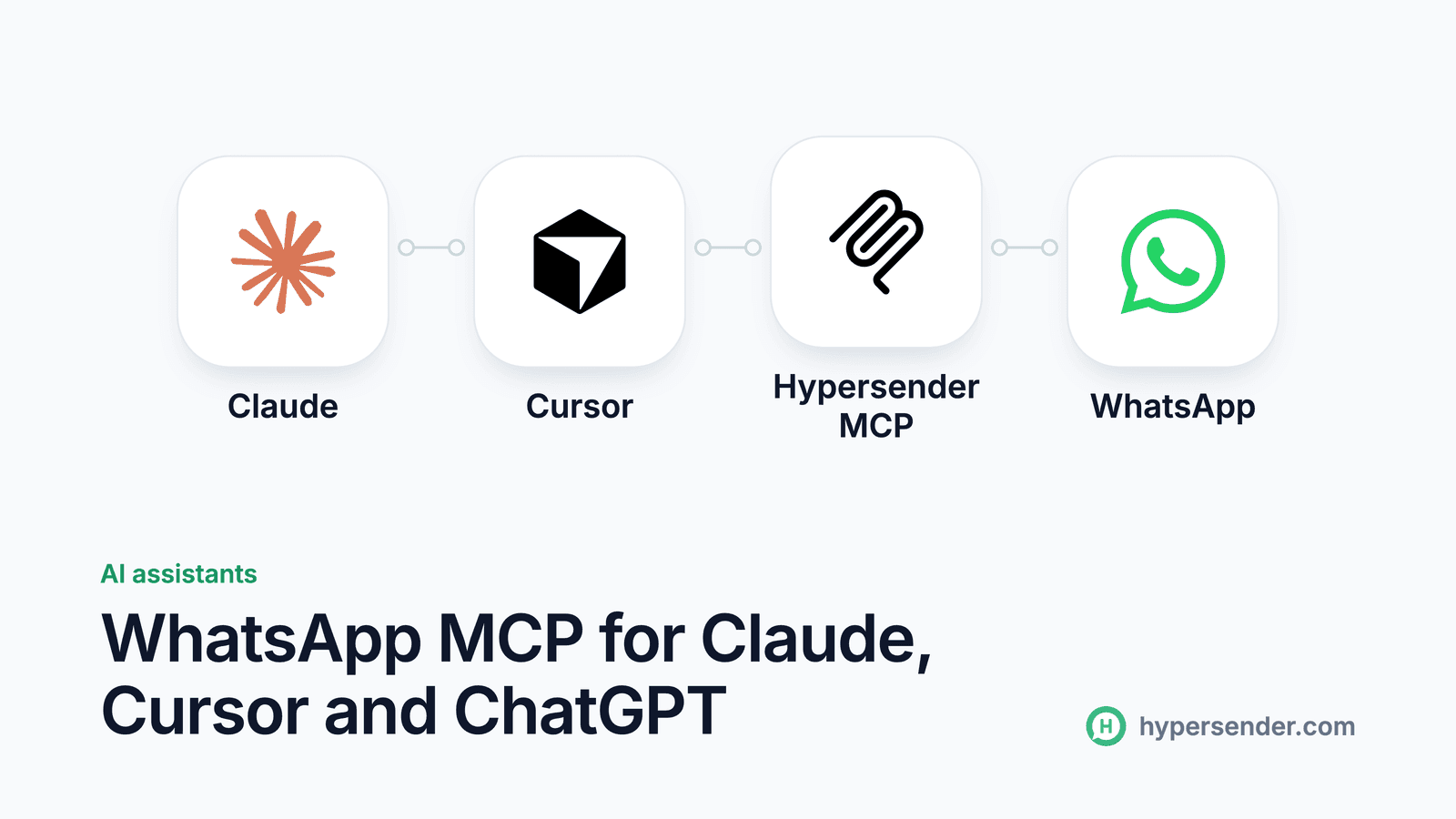
WhatsApp MCP is a Model Context Protocol server that lets an AI assistant send WhatsApp messages for you. You type "send Sara the new price list" in Claude or Cursor, and the assistant calls a tool that sends it from your number. This guide connects the hosted Hypersender WhatsApp MCP server to Claude, Claude Code, Cursor, ChatGPT and Codex, then shows prompts that are safe to start with.
Hosted or local WhatsApp MCP
There are two kinds of WhatsApp MCP server.
The open-source ones, like the popular whatsapp-mcp on GitHub, run on your computer. They log in to WhatsApp Web with your personal account, keep your messages in a local database, and let the assistant search and read your chats.
The Hypersender MCP server is hosted. You add one URL to your assistant and sign in, and nothing runs on your machine.
It works with the WhatsApp numbers you've connected to Hypersender, and it also covers SMS from an Android phone. It can't read your chat history: its tools send messages and check what happened to them.
Pick the local kind if you want an assistant that reads your personal chats. Pick the hosted one to send business messages from Claude or Cursor without running anything.
What you need
- A Hypersender account with a WhatsApp number connected by QR code, or an Android phone linked for SMS
- An AI client that supports remote MCP servers: Claude, Claude Code, Cursor, ChatGPT, Codex or Gemini CLI
Connect your assistant
Every client gets the same server URL:
https://app.hypersender.com/mcpThe URL goes in a different place in each client:
| Client | Where it goes |
|---|---|
| Claude (web and desktop) | Customize → Connectors → Add custom connector, named hypersender |
| ChatGPT | Plugins → + → Add custom MCP server, named hypersender |
| Claude Code | One command in your terminal |
| Codex | One command, then codex mcp login hypersender |
| Cursor | An entry in mcp.json |
Claude Code:
claude mcp add --transport http hypersender https://app.hypersender.com/mcpThen start Claude Code, type /mcp and pick Hypersender to sign in.
Codex:
codex mcp add hypersender --url https://app.hypersender.com/mcp
codex mcp login hypersender
Cursor, in mcp.json:
{
  "mcpServers": {
    "hypersender": {
      "url": "https://app.hypersender.com/mcp"
    }
  }
}
Codex has been tested end to end with Hypersender, sign-in and a WhatsApp send included. The other clients use their standard remote MCP setup, and we haven't tested them with Hypersender yet. On Claude Team and Enterprise plans, an admin may need to add the connector.
Sign in and choose what the assistant can do
When you connect, a Hypersender window opens. Sign in, pick the WhatsApp and SMS instances the assistant may use, and pick its permissions. Give it only what the job needs: an assistant that sends order updates doesn't need to delete instances or change webhooks.
You can change or revoke the connection later under Management → MCP → Connected assistants in the Hypersender dashboard. After a change, refresh the tools in your client or start a new chat.
Prompts to start with
Start with one that changes nothing:
Using hypersender, list my approved instances. Do not send anything.Then send a test message to your own number. The recipient is the country code and number, digits only:
Using hypersender and my Sales instance, send "Hello from Hypersender" to 201000000002. Show me the sender, recipient and exact message before sending. Send once.The assistant gets back a request UUID. That means Hypersender accepted the message, not that WhatsApp delivered it. To find out what happened:
Using hypersender, check request <request UUID>.A few more that work with the right permissions:
- "Schedule an SMS to +201000000002 for tomorrow at 10:00 saying the appointment is confirmed." SMS can be scheduled up to 3 days ahead.
- "Check if 201000000002 is on WhatsApp."
- "List the webhooks on my Support instance. Don't change anything."
- "Prepare a WhatsApp OTP link for my Sales instance and show me the details before creating it."
What the server can do
| Area | Examples of tools |
|---|---|
| WhatsApp messages | send_whatsapp_text, images, files, polls, locations, reactions, get_whatsapp_request_status |
| WhatsApp contacts | check_whatsapp_contact, list_whatsapp_contacts, profile pictures |
| Instances | list_instances, instance health, a new QR code, restart |
| SMS | send_sms, schedule_sms, conversations, phone heartbeats |
| OTP | request_otp_code, validate_otp_code, generate_otp_link |
| Webhooks | list, create, update, turn on or off |
Every tool needs the matching permission and an approved instance. The tool reference lists each one.
Use it safely
- Ask the assistant to show the sender, recipient and text before it sends, and to send once. Your client's approval prompts are separate from Hypersender's permissions, so keep them on.
- Don't resend because a status says queued. Check the request first; a second send is a second message.
- Request status can be checked up to three times a minute per connection, so let the assistant wait between checks.
- Send to people who expect to hear from you. An assistant can write and send faster than you can, and that is how numbers get banned. How to avoid a WhatsApp number ban covers the limits.
Troubleshooting
The client can't connect. Check the URL, then remove the server and add it again to sign in. A connection you revoked in the dashboard has to be authorized again.
The assistant says a tool or instance isn't available. That instance or permission wasn't approved at sign-in, or the subscription for that service isn't active. Change the connection under Management → MCP and refresh the client's tools.
An SMS was accepted but never arrived. The phone still has to send it. Ask the assistant to list the instance's SMS messages to see the status, and check that the phone is online before you send again.
Next steps
- Build an agent that answers customers: WhatsApp AI agent in n8n with the Hypersender MCP server
- Every client's steps in the MCP connection guide
- What the server offers, on the WhatsApp MCP server page
Create a Hypersender account, connect your WhatsApp number by QR code, and add https://app.hypersender.com/mcp to your assistant.