Developer guides
WhatsApp AI Agent in n8n with the Hypersender MCP Server
Build a WhatsApp AI agent in n8n: connect the Hypersender MCP server to the AI Agent node, send messages by chat, and answer customers.
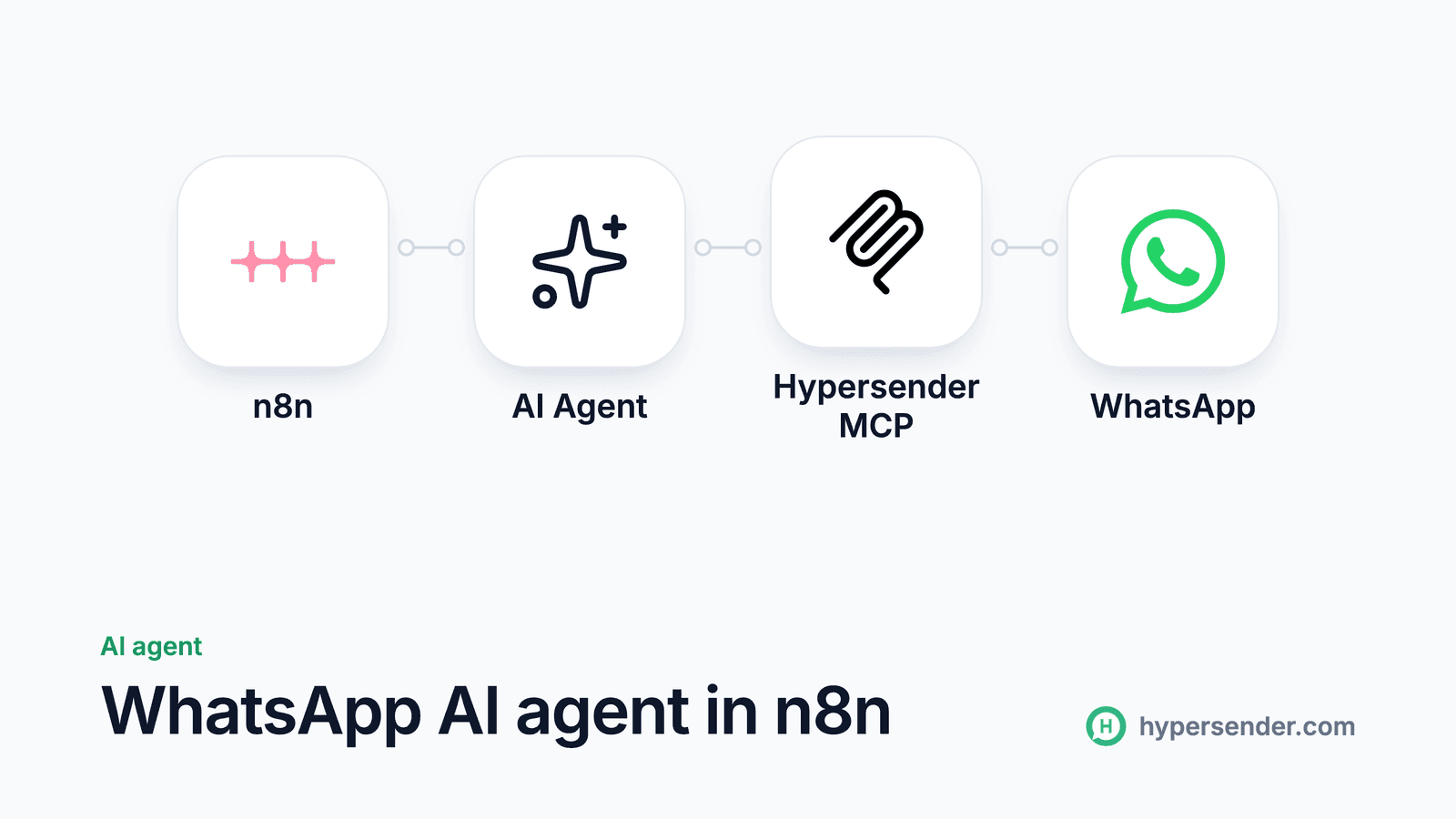
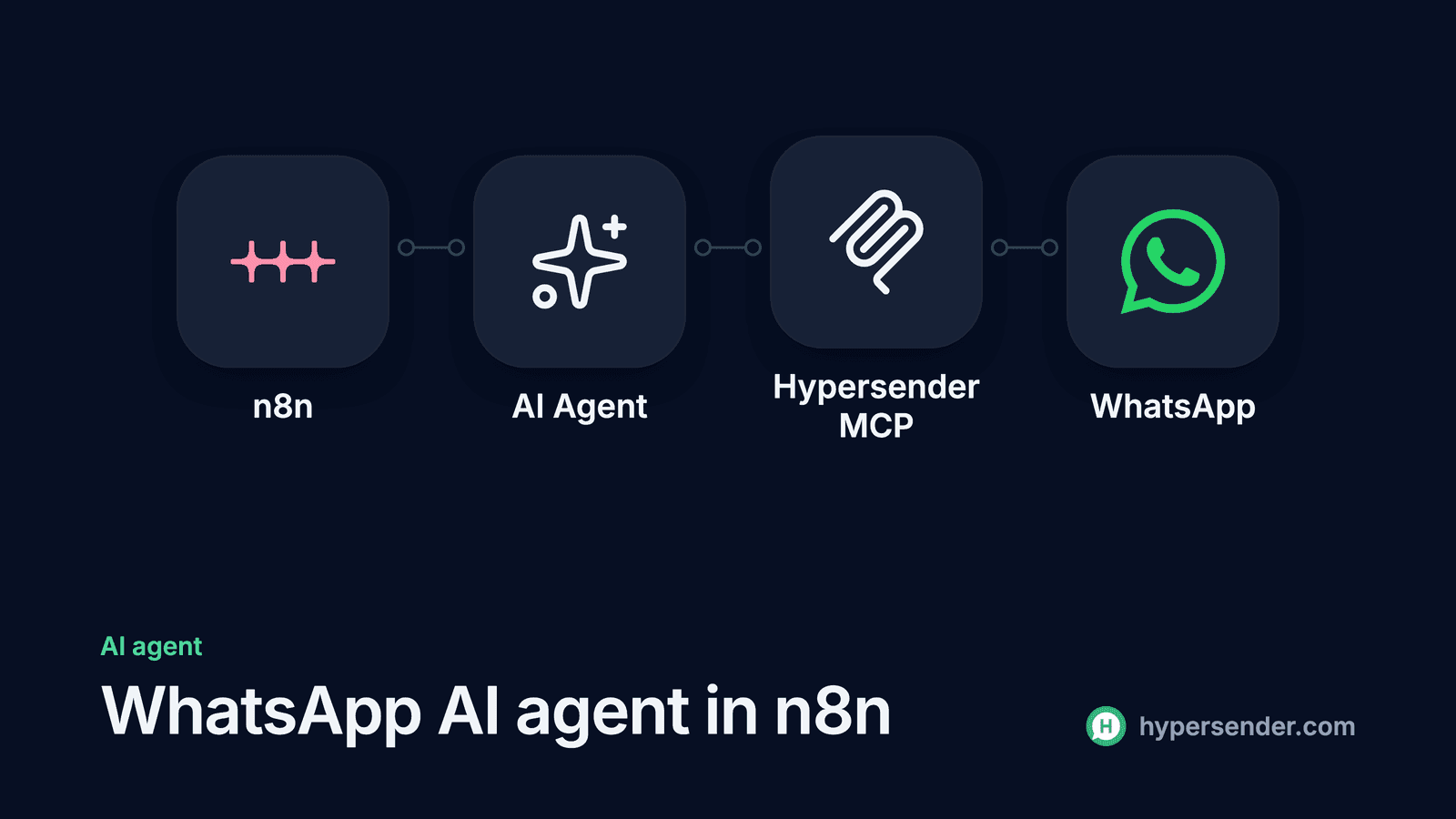
A WhatsApp AI agent in n8n is an AI Agent node that can read a request in plain language and act on WhatsApp: send a message, send an SMS, or check whether a message went out. This guide connects n8n's AI Agent to the Hypersender MCP server, then builds two agents: one you give instructions to in n8n's chat, and one that answers your customers on WhatsApp.
What MCP adds to n8n
MCP (Model Context Protocol) is a standard way to hand an AI model a set of tools. Instead of building an HTTP Request node for each API call, you add one MCP Client Tool node to the AI Agent, and the agent sees every Hypersender tool you allow, with its name, description and inputs. The agent decides which tool to call and fills in the arguments.
The Hypersender MCP server is hosted at https://app.hypersender.com/mcp. It signs you in with OAuth, so your API key never goes into n8n. During sign-in you pick which WhatsApp and SMS instances the agent can use and what it may do with them, and you can revoke that access later under Management → MCP in the Hypersender dashboard.
What you need
- n8n with the AI Agent node and MCP Client Tool node (n8n Cloud or a recent self-hosted version)
- A chat model credential for the agent, such as OpenAI, Anthropic or Google Gemini
- A Hypersender account with a WhatsApp instance connected by QR code
Connect the Hypersender MCP server
- Add an AI Agent node and give it a chat model.
- Under the agent's Tool input, add an MCP Client Tool node with these settings:
| Setting | Value |
|---|---|
| Endpoint | https://app.hypersender.com/mcp |
| Server Transport | HTTP Streamable |
| Authentication | MCP OAuth2 |
| Tools to Include | Selected |
- Create a new MCP OAuth2 API credential. Leave Register Client Automatically on and Resource URL empty: n8n finds the Hypersender sign-in pages on its own and registers itself.
- Click Connect my account. A Hypersender window opens: sign in, choose the instances and permissions for this agent, and approve.
- Back in the node, open Tools to Include and pick only what the agent needs. For a messaging agent that's usually
list_instances,send_whatsapp_textandget_whatsapp_request_status.
Picking tools by hand matters more than it looks. An agent with every tool can also change webhooks or manage instances if a prompt goes wrong. Give it the smallest set that does the job, and give the same small set of permissions during sign-in.
An agent that sends WhatsApp messages by chat
This agent is for you and your team. You type an instruction, and it sends the message.
Start the workflow with a When chat message received trigger, connect it to the AI Agent, and add Simple Memory so it remembers the conversation. Put this in the agent's system message:
You send WhatsApp messages for our team through Hypersender.
Use the "Support" instance. Its number is +201000000000.
Before you send anything, repeat the recipient and the exact text and wait for "yes".
Never send the same message twice. If a send result is unclear, check its request status instead.
Open the chat and try:
Send a WhatsApp to 201234567890 saying our office is closed tomorrow for the holiday.
The agent calls send_whatsapp_text with the instance, sender number, recipient and text, then reports the request_uuid it gets back. That reference means Hypersender accepted the message for sending, not that WhatsApp delivered it. Ask "did it go out?" and the agent checks it with get_whatsapp_request_status.
An agent that answers customers on WhatsApp
For customer replies, the incoming message comes from Hypersender's webhook, the same setup as in the n8n WhatsApp integration guide: a Webhook node protected by a secret, then an If node that keeps only message.any events that aren't fromMe and come from chats ending in @c.us.
After the If node:
- AI Agent, with the prompt set to
{{ $json.body.data.payload.body }}and a system message that describes your business, your opening hours, and what to do when it doesn't know the answer. - Simple Memory on the agent, with the session key set to
{{ $('Hypersender webhook').item.json.body.data.payload.from }}, so each customer gets their own conversation history. - An HTTP Request node after the agent that sends
{{ $json.output }}to the customer through thesend-textendpoint, exactly as in the integration guide.
The agent writes the answer, and a fixed HTTP Request node sends it. The recipient comes from the webhook, not from the model, so a customer can't talk the agent into messaging someone else. In this workflow, either leave the Hypersender MCP tool off the agent, or give it read-only tools.
Customer messages are text written by strangers. Treat them as data: don't give a customer-facing agent tools that change settings, send to arbitrary numbers, or read other people's chats.
Keep the agent safe
- Pick tools under Tools to Include instead of exposing all of them.
- During OAuth sign-in, approve only the instances and permissions the workflow uses.
- Ask the agent to confirm before it sends, at least until you trust the prompt.
- Watch the volume. An agent that loops can send many messages quickly, and that is how numbers get blocked. How to avoid a WhatsApp number ban covers the limits.
- Revoke the connection under Management → MCP in Hypersender when a workflow is retired.
Common problems
The sign-in window doesn't open, or fails. Your n8n must be reachable at the URL it shows as the OAuth redirect. A self-hosted n8n behind localhost needs its public URL set (WEBHOOK_URL / N8N_EDITOR_BASE_URL).
The agent says it has no Hypersender tools. Check that Server Transport is HTTP Streamable and that you selected at least one tool under Tools to Include.
"Permission denied" from a tool. You didn't grant that permission or instance at sign-in. Change the connection under Management → MCP and try again.
The agent sends the message twice. Add the "never send the same message twice" line to the system message, and lower the model's temperature.
Next steps
- Start without AI: send and auto-reply to WhatsApp in n8n with the HTTP Request and Webhook nodes
- Prefer code? Build a WhatsApp bot in Python
- Read the WhatsApp webhooks reference for every event your agent can react to
Create a Hypersender account, connect your number by QR code, and add https://app.hypersender.com/mcp to your n8n agent.