Guides
How to Schedule Messages on WhatsApp: Phone, Business, API
How to schedule messages on WhatsApp: the new built-in scheduler, what the Business app can do, iPhone Shortcuts, and sending on a schedule with an API.
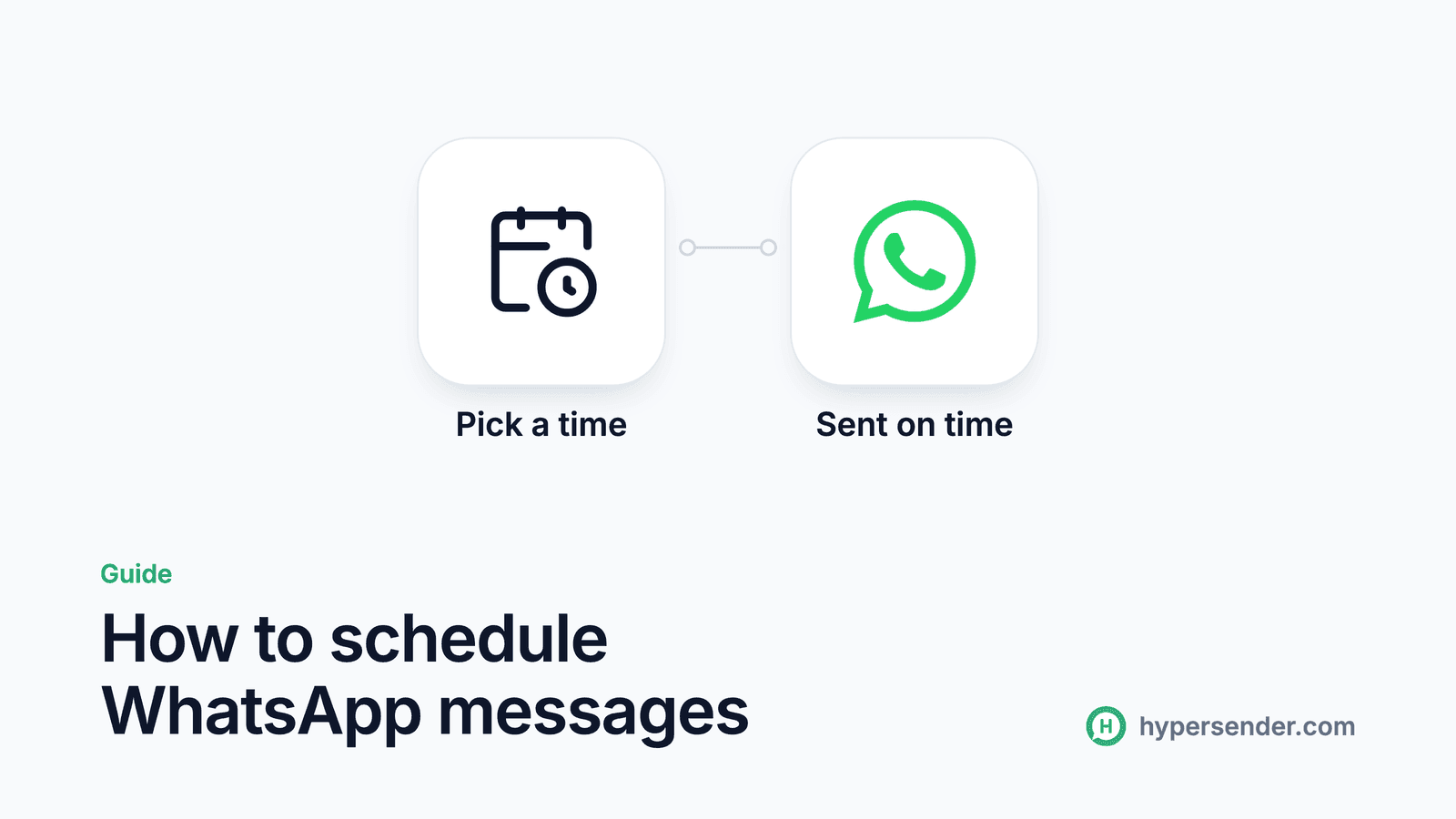
How to schedule messages on WhatsApp depends on which app you use. Regular WhatsApp is rolling out a built-in scheduler: press and hold Send and pick a time. The WhatsApp Business app can't schedule normal chats yet, so businesses use away messages, paid broadcasts or an API. Here is each way, and which one fits.
Schedule a message in WhatsApp (built in)
WhatsApp is rolling out scheduled messages in the regular app. If you have it:
- Open the chat and type your message.
- Press and hold the Send button.
- Choose the date and time, up to two weeks ahead, and confirm.
Your pending messages sit in a Scheduled messages list, where you can change or cancel them. In a group, a scheduled message only reaches people who were members when you scheduled it. If you don't see the option yet, update WhatsApp: the feature reaches phones gradually.
WhatsApp's help page says scheduling is not available in WhatsApp Business for now.
What you can schedule in WhatsApp Business
- Away messages go out automatically outside the hours you set. In the Business app, open Tools, then Away message, and pick Always send, a custom schedule, or outside of business hours.
- Paid business broadcasts, where available, can be scheduled for a later time. They're campaigns to many customers, reviewed by Meta and paid per delivered message, and your phone needs to be online when they go out.
Neither sends one personal message to one customer at a time you choose, like a reminder the day before an appointment.
iPhone Shortcuts
On an iPhone you can build a personal automation in the Shortcuts app that runs at a set time and uses WhatsApp's Send Message action. People report it often opens the message and waits for you to tap Send, and it can stop working after updates, so treat it as a reminder rather than an unattended scheduler.
Avoid auto-sender apps
Android apps that tap Send for you when the time comes are unofficial automation. WhatsApp's FAQ says automated messaging from the apps breaks its Terms, and these apps put your number at risk of a ban.
Schedule WhatsApp messages with an API
If your messages depend on data, such as bookings, invoices or orders, schedule them in your own system and send them through an API at the right moment. The Hypersender WhatsApp API sends from your own WhatsApp number, so your app decides when each message goes out:
- n8n: a Schedule trigger or a Wait node, then the Hypersender node to send. The n8n WhatsApp guide walks through it, no code needed.
- Your code: a cron job or a queue with a delay (Laravel, Node.js, Python and Go all have one), then a call to the send-text-safe endpoint.
- SMS: Hypersender's SMS API has scheduling built in. Pass
schedule_send_atand the Android phone sends the text at that time, up to 3 days ahead.
Common scheduled messages:
| Message | When to send |
|---|---|
| Appointment reminder | 24 to 48 hours before, and again 2 hours before |
| Payment reminder | 3 days before the due date, on the day, and after |
| Class or event reminder | The evening before |
| Follow-up after an order | A few days after delivery |
The WhatsApp message templates have ready versions of each, checked against WhatsApp's rules.
Which way to schedule
| You want to | Use |
|---|---|
| Send a personal message later | WhatsApp's built-in scheduler |
| Reply automatically outside opening hours | An away message in WhatsApp Business |
| Send a campaign at a set time | A paid business broadcast |
| Send reminders and updates from your own data | A WhatsApp API |
Next steps
- See all the ways to automate WhatsApp from your own number
- Write reminder texts in the templates tool
- Build a scheduled flow in n8n
Create a Hypersender account, connect your number with a QR code, and send your first scheduled reminder today. The first 14 days are free.