Guides
Auto Reply WhatsApp: 12 Messages and How to Set Them Up
Auto reply WhatsApp messages for after hours, busy times, holidays and orders, with how to set them up in WhatsApp Business or through an API.
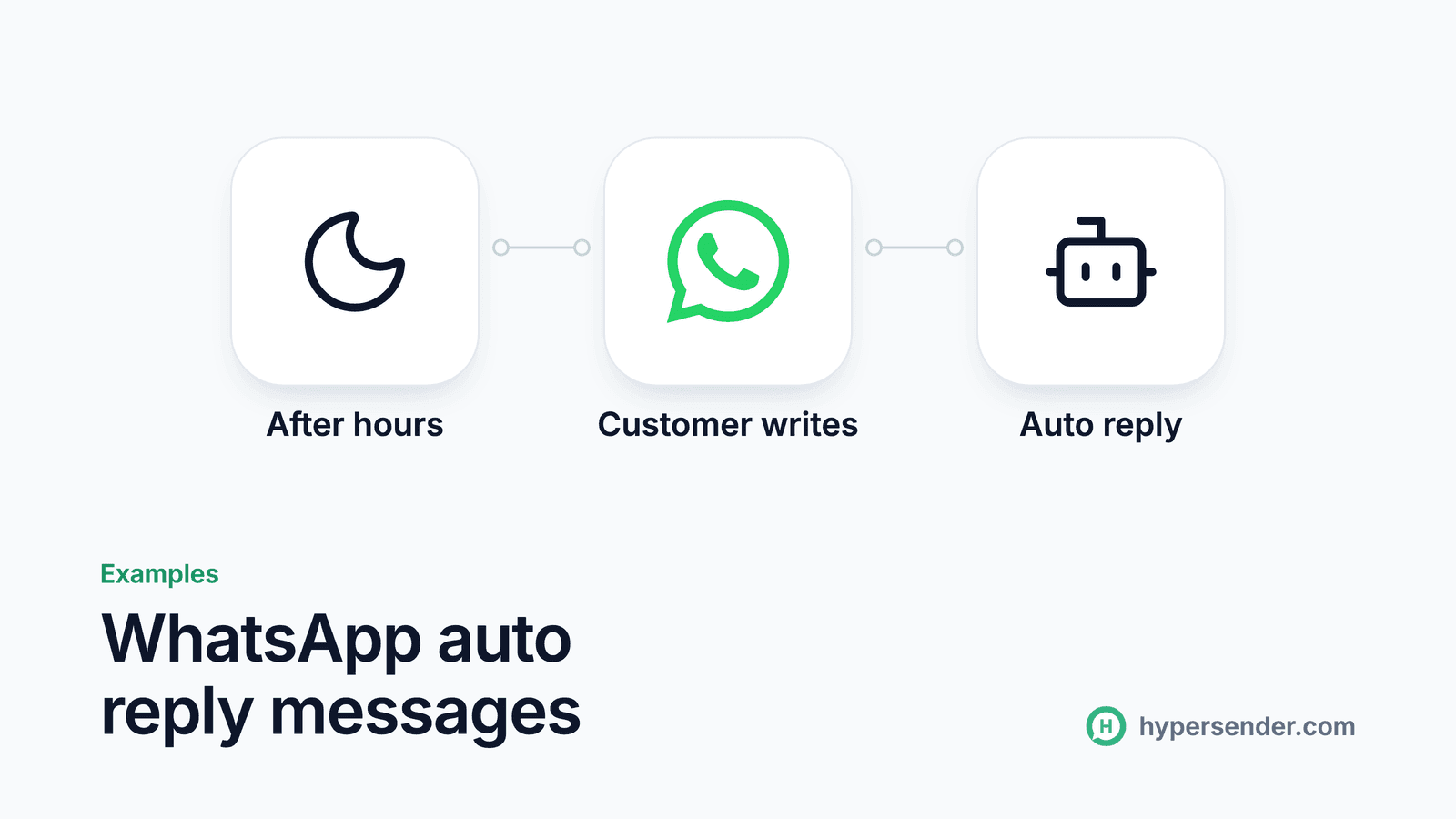
An auto reply on WhatsApp answers customers when nobody is free to: after closing time or when the team is busy. It tells them their message arrived and when to expect a person. Below are 12 auto reply messages you can copy, and the two ways to send them: the WhatsApp Business app, or an API that can do much more.
Away message examples
After hours
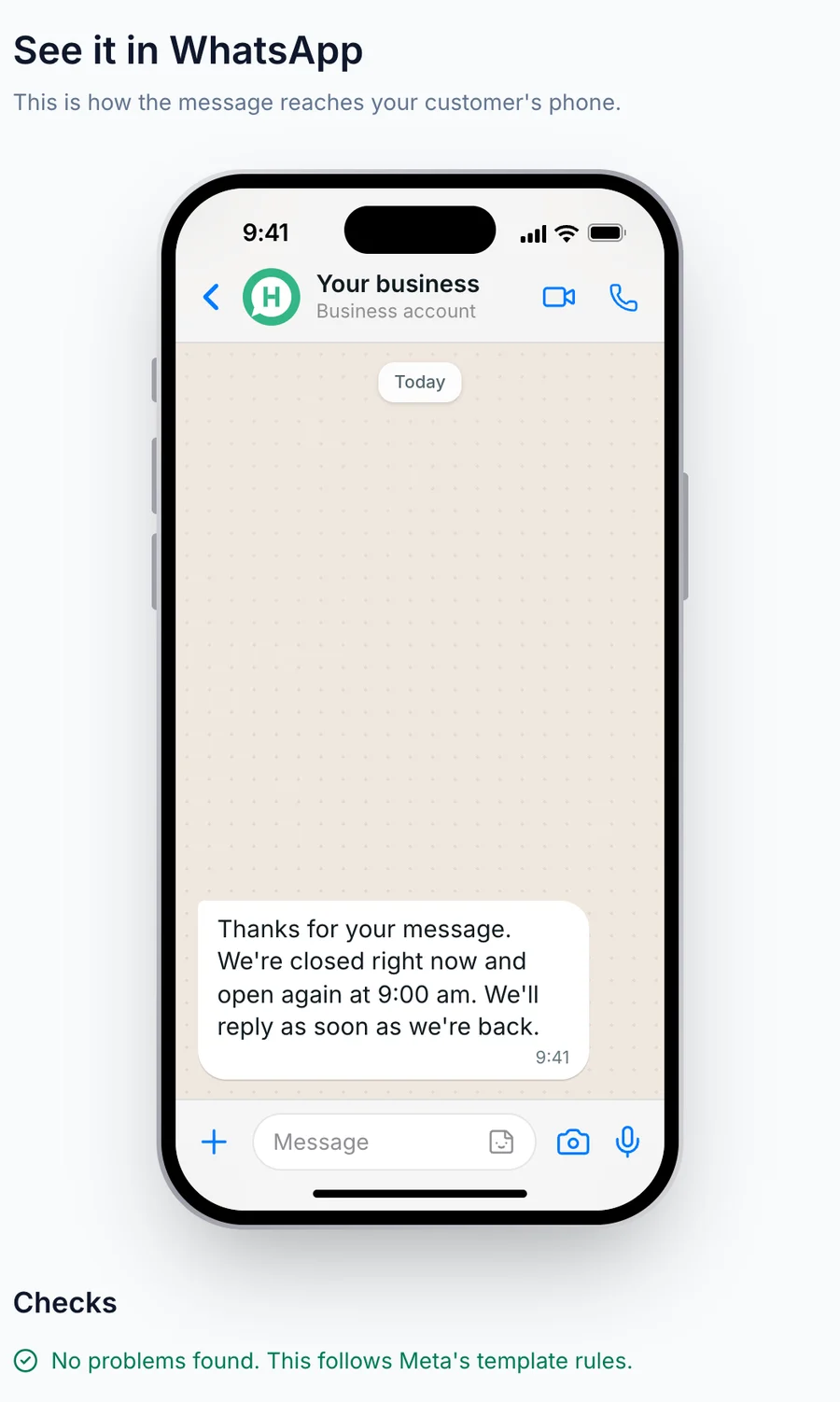
Thanks for your message. We're closed right now and open again at 9 am. We'll reply as soon as we're back.
Hi, you've reached Cotton & Co outside our hours (Sunday to Thursday, 9 am to 6 pm). Leave your question here and we'll answer first thing tomorrow.
Weekends
Thanks for writing to Riverside Dental. The clinic is closed at weekends. For a dental emergency, call our on-call number on our profile. We'll reply to your message on Monday.
Holidays
Thanks for your message. Our office is closed for Eid until Sunday. We'll reply to every message when we're back.
Season's greetings from FastFix. We're closed from 24 to 26 December and back on the 27th with normal hours.
Busy and received messages
Thanks for reaching out, Sara. Our team is busy with other customers right now. We'll get back to you within 30 minutes, usually sooner.
We got your message, Omar. Someone from Riverside Dental will reply within 2 hours.
Thanks for your patience. It's a busy day, so replies are taking a little longer than usual. You're in the queue and we haven't forgotten you.
Auto replies that solve the question
The most useful auto reply answers the most common question straight away.
Thanks for your message. To check an order, reply with your order number, or follow it any time here: [link].
Hi, thanks for messaging Green Bowl. Reply 1 to order, 2 to check an order, or 3 to talk to a person.
Hello, our prices and opening hours are on our profile. If you'd like to book, send your name and preferred day.
Thanks for contacting Corniche Hotel. For a booking change, reply with your booking reference and the new dates.
How to set up an auto reply in WhatsApp Business
The WhatsApp Business app has two built-in auto replies:
- Away message: open Tools, then Away message, turn it on and write your text. Choose when it sends: always, on a custom schedule, or outside the business hours on your profile.
- Greeting message: open Tools, then Greeting message. It goes to customers who write for the first time, or again after 14 days without messages.
For both you can pick who gets them: everyone, everyone not in your address book, everyone except some contacts, or only some contacts. The app also has quick replies: saved answers you insert by typing "/" in a chat.
Regular WhatsApp has no auto reply, and apps that promise one by reading your notifications are unofficial and risk your number.
Auto replies with an API
The Business app sends the same text to everyone. With an API, your auto reply can look things up and answer properly. Hypersender sends every incoming message to your webhook, and your code or an n8n workflow decides what to send back:
- reply with the customer's actual order status, found by their number
- answer by keyword: "hours", "price", "track"
- show a numbered menu and route the chat to the right person
- hand common questions to an AI chatbot and pass the rest to your team
- send a different reply in opening hours and after hours
Use the send-text-safe endpoint so each reply shows typing and arrives at a human pace. The same idea works for SMS: auto-replying to text messages on Android uses Hypersender SMS rules.
Edit them in the templates tool
The WhatsApp message templates tool has an auto-reply category with these messages ready to edit and preview:
Tips for a good auto reply
- Say when a person will reply, and keep that promise.
- Answer the top question in the auto reply itself, or link to it.
- Keep it short: two or three lines.
- Don't sell in it. An auto reply is a service message. Save offers for customers who asked for them.
Next steps
- Copy auto-reply and greeting messages from the templates tool
- Write your first message to new customers with these introduction message examples
- Automate replies and updates with WhatsApp automation
Create a Hypersender account, connect your number with a QR code, and answer every message, even after hours. The first 14 days are free.