Guides
Auto Reply Text Messages on Android with SMS Rules
Auto reply text messages on Android: after-hours replies, keyword answers, and opt-out confirmations, sent from your own SIM with Hypersender rules.
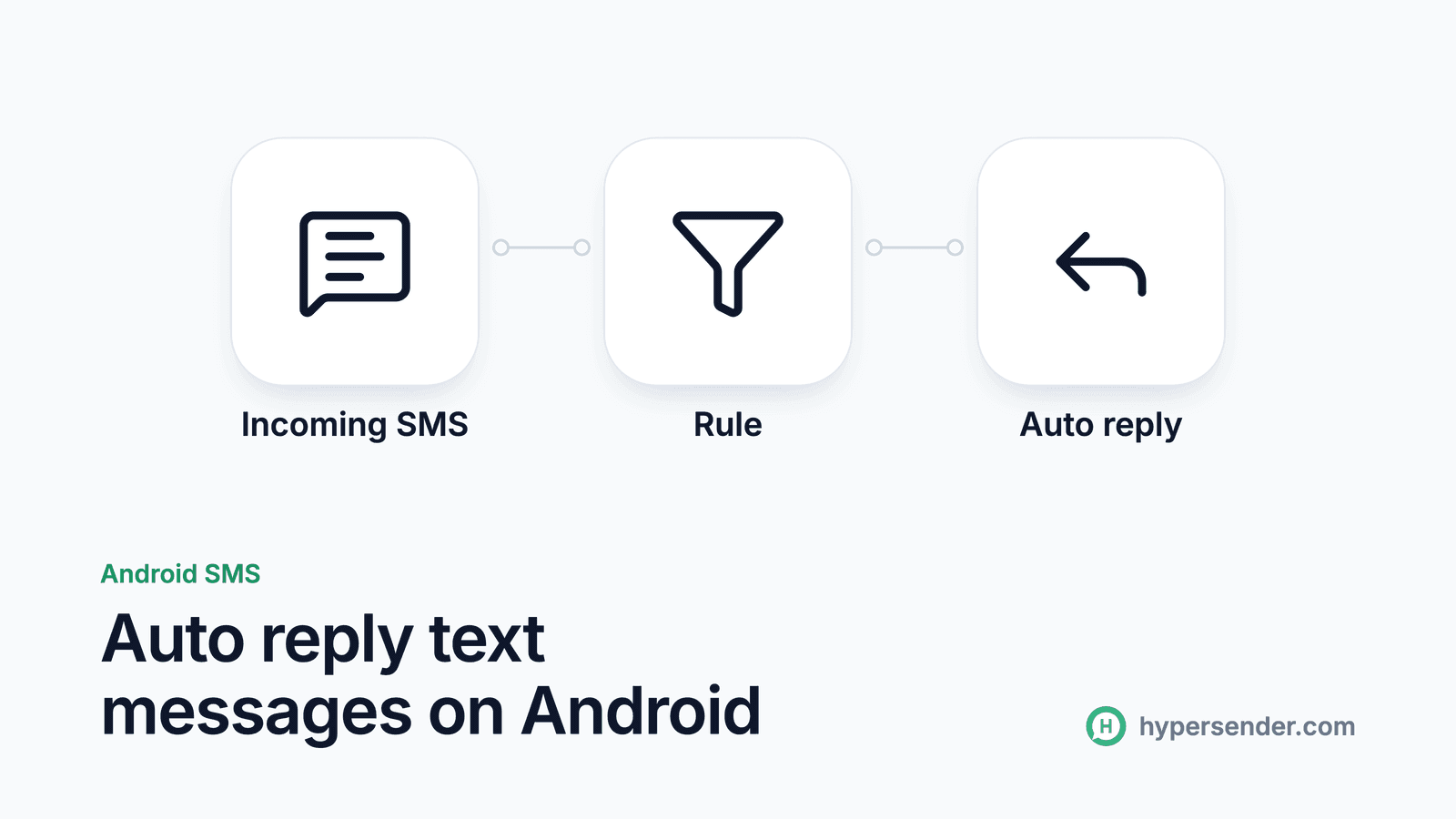
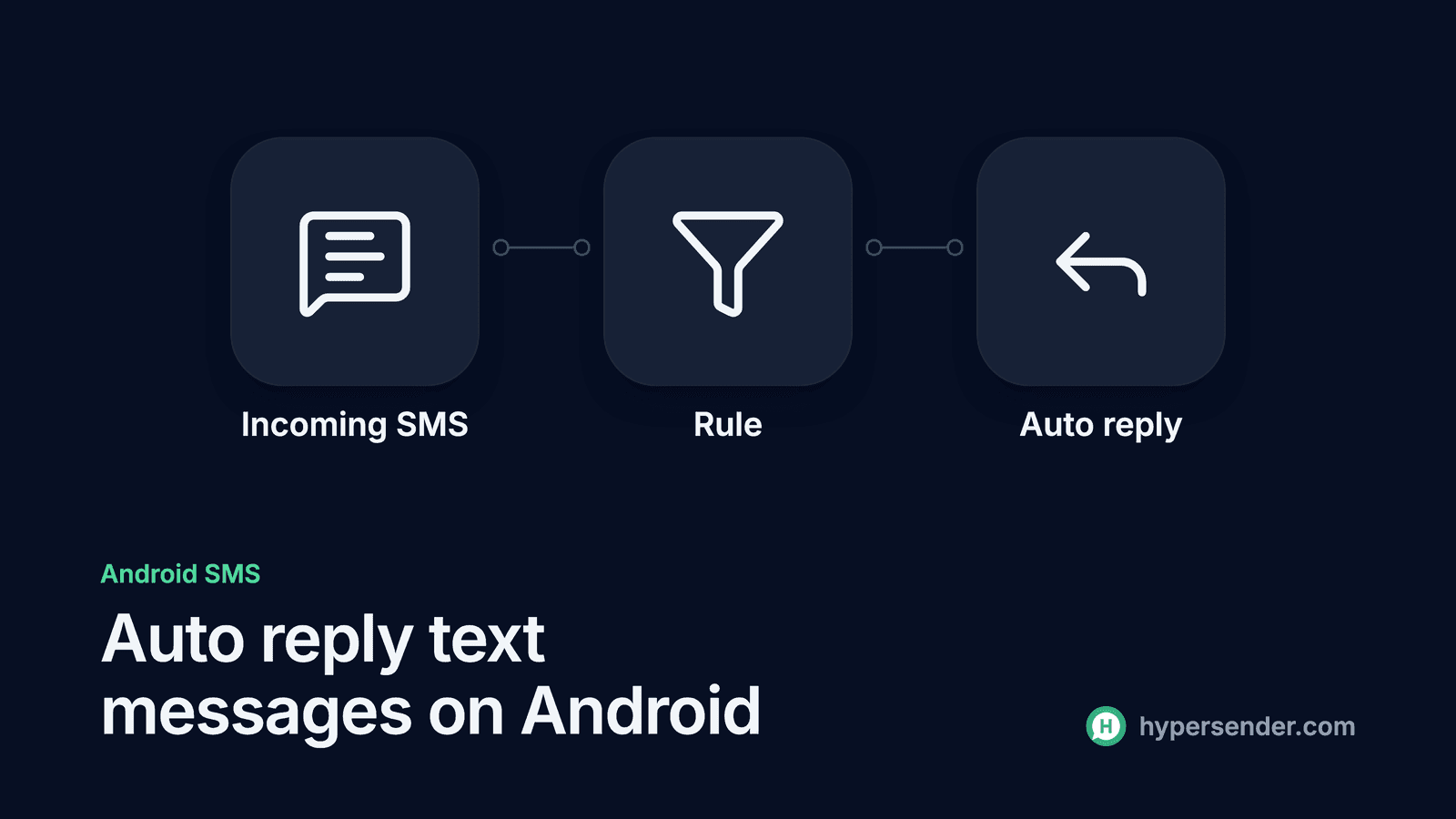
To auto reply text messages on Android, you need something on the phone that reads each incoming SMS and answers it. Most messaging apps only do that while you drive. The Hypersender SMS app does it with rules: you choose which messages get a reply, what the reply says, and how often one sender can get it. The reply goes out from your own SIM, like a text you typed yourself.
This guide sets up an SMS auto reply step by step, then shows four replies businesses use most.
What you need
- An Android phone with the SIM that receives the messages
- Hypersender SMS 1.50 or newer from Google Play
- A Hypersender account with an SMS instance linked to that phone (quick start)
Auto replies are ordinary SMS from your SIM, so your carrier plan pays for them the same way.
Set up an SMS auto reply
- Open the Rules tab in the app and tap New rule. Give it a name you'll recognize in the activity log, like "Closed on Friday".
- Under When an SMS…, add the conditions that should trigger the reply: words in the message, the sender, the SIM, or a time window.
- Under Then…, add Auto-reply and write the text. Choose the cooldown: how long before the same sender can get this reply again.
- Scroll down to Test this rule, enter a sample sender and message, and check that the result says a reply would be sent. Then save.
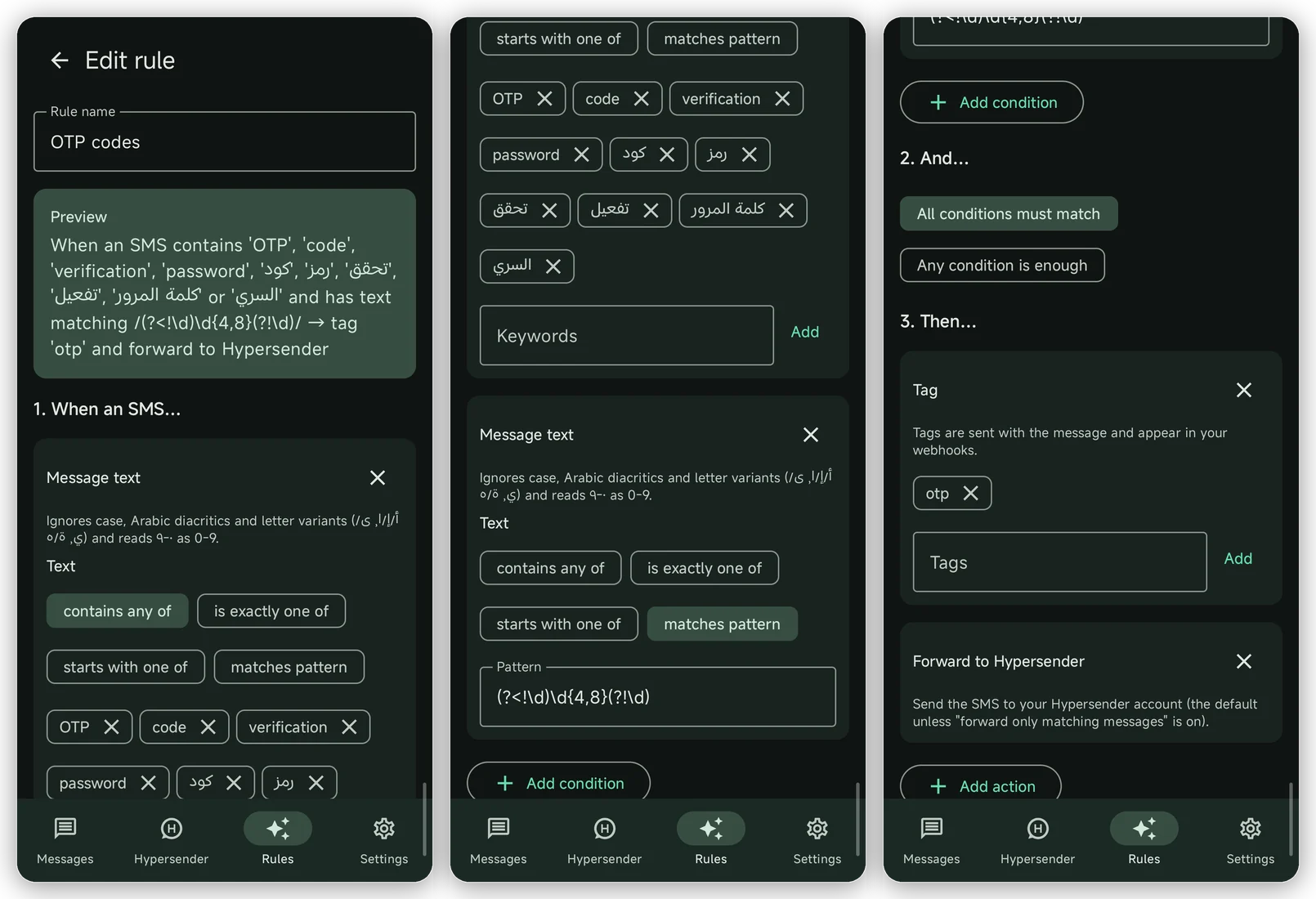
The editor shows the rule as a sentence at the top, so you can read it back before saving.
Four auto replies worth copying
Reply after working hours
Add the After-hours auto-reply template from the Rules tab. Outside 09:00–18:00, Sunday to Thursday, each sender gets one reply a day. Change the window, the days, and the text to match your hours:
Thanks for your message. We're closed now and will reply at 9:00. For urgent orders, call 0100 000 0000.A window like 22:00–06:00 runs past midnight, so night hours need only one rule.
Answer common questions by keyword
Customers ask the same few things. Make one rule per question, with a Message text condition set to contains any of:
| Keywords | Reply |
|---|---|
price, prices, سعر | Our price list: example.com/prices |
hours, open, مواعيد | We're open Sunday to Thursday, 9:00 to 18:00. |
address, location, عنوان | 12 Example Street, Cairo. Map: example.com/map |
Matching ignores case, and Arabic letter variants like أ/إ/ا count as the same letter. Put these rules above the after-hours rule: the first matching rule with an auto reply is the one that sends.
Confirm opt-outs
The Opt-out handling template replies to STOP, UNSUBSCRIBE, or إلغاء with a confirmation, at most once every 30 days per sender. It also tags the message opt-out, so your backend can remove the number from your lists when the message reaches your webhook.
Reply on one SIM only
On a dual-SIM phone, add a SIM condition so only the business SIM answers. Messages on your personal SIM get no reply, and the reply always goes out from the SIM that received the message.
Put details in the reply
Three placeholders are filled in when the reply is sent:
| Placeholder | Becomes |
|---|---|
{sender} | The sender's number |
{time} | The time the message arrived |
{sim} | The SIM that received it |
A reply can be up to 480 characters. Keep it shorter than 160 characters (70 if it has Arabic) and it goes out as one SMS. The SMS character counter shows how many parts a text takes.
What auto replies won't do
The limits are there so a rule can't flood anyone or start a loop:
- No replies to short codes or sender names. Your bank, your carrier, and services like
BANK-EGnever get one. - One reply per sender per rule within the cooldown. You set it from 1 hour to 30 days; the default is 24 hours.
- No retries. If a reply fails, it isn't sent again, so nobody gets the same reply twice.
- Not in the API. Auto replies are sent by the phone and don't appear in API responses or delivery webhooks.
Before you rely on a rule, use Test all rules to see how your rules work together. Once real messages arrive, Activity lists the last 100 matches with the rule that fired.
When you need smarter replies
Rules reply with fixed text. To answer with data from your system, like an order status or a booking time, let the SMS reach your server and reply from there:
- The incoming SMS arrives in your webhook as a
message.phone.receivedevent, with the sender, text, SIM, and any tags your rules added. - Your code looks up the answer and calls the send-message endpoint:
{
  "to": "+201000000002",
  "content": "Order 1042 left our warehouse today. Track it at example.com/t/1042",
  "request_id": "reply-9f1c2b7e-4d3a-4c8e-9b6f-2a7d5e8c1f04"
}
Build request_id from the incoming message ID. If your webhook gets the same event twice, the second request returns the existing message instead of sending another reply.
Without code, point the webhook at an n8n workflow and build the reply there; the n8n WhatsApp guide shows the same webhook-and-reply pattern.
Troubleshooting
No reply was sent. Check the sender: short codes and sender names never get replies. Then check the cooldown, since that sender may have had the reply already. Activity shows whether the rule matched at all.
The wrong reply was sent. Another rule above it matched first. Move the more specific rule up with the arrows.
Replies stop after a while. Android may be pausing the app to save battery. Follow keep the app running to remove battery limits.
Next steps
- Filter and tag incoming SMS with rules: block promotions, forward only OTP codes, and tag bank alerts
- Forward text messages to email or Slack from the same phone
- Every condition and action in the rules reference
Create a Hypersender account, link your Android phone, and add the after-hours template from the Rules tab.