Product updates
Introducing Webhook Logs: See, Debug, and Retry
Track every webhook, inspect requests and responses, and safely retry failures—right from your Hypersender dashboard.

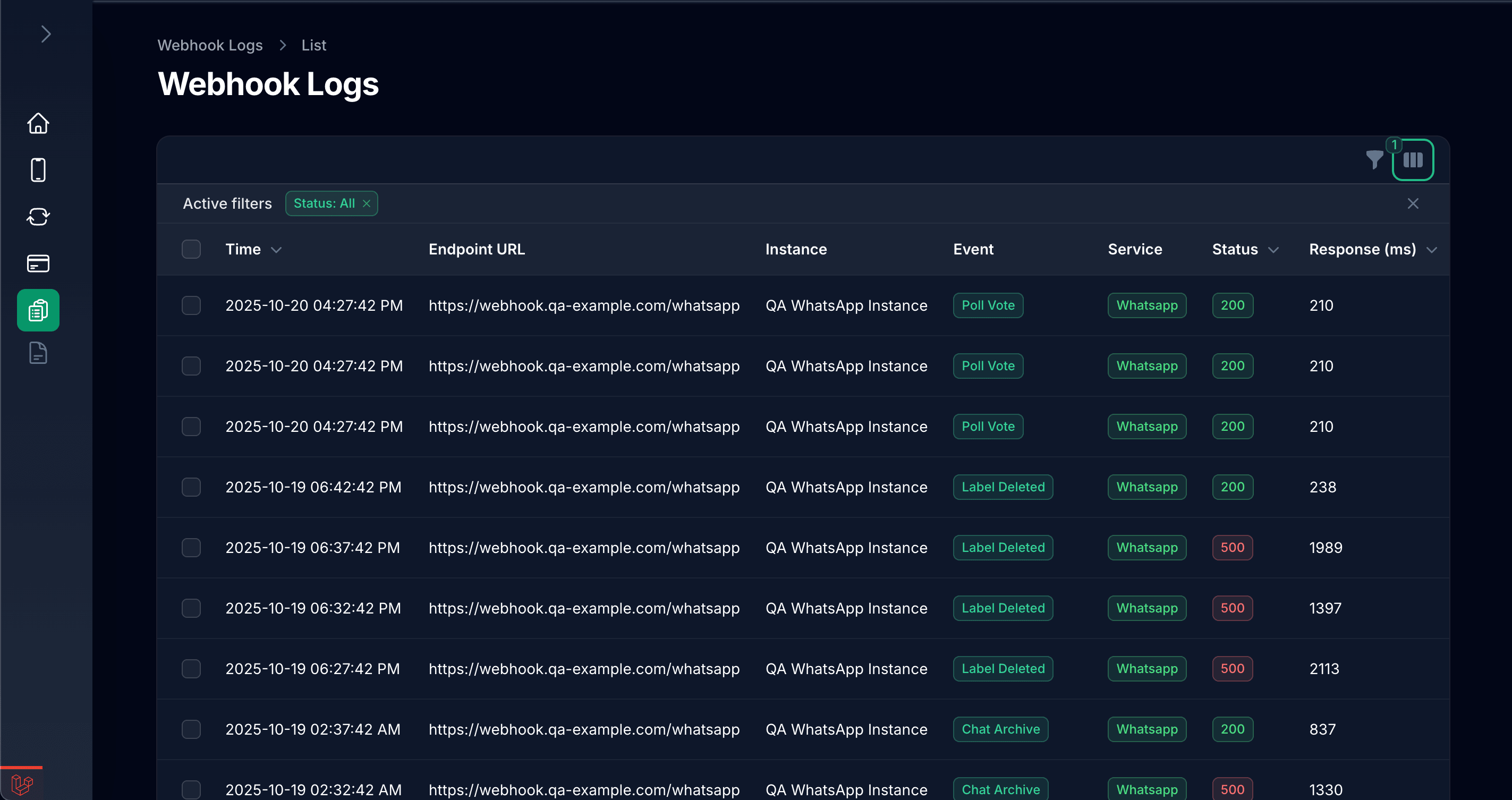
We are happy to introduce the Webhook Logs feature that gives you full visibility into every webhook your app send, we sent, what your endpoint returned, and a safe way to retry failures without writing a line of code.
What you get
- A timeline of all webhook attempts with status (Success/Failed), endpoint, event, timestamp, and response time.
- Powerful filters: by status, date range, and endpoint URL.
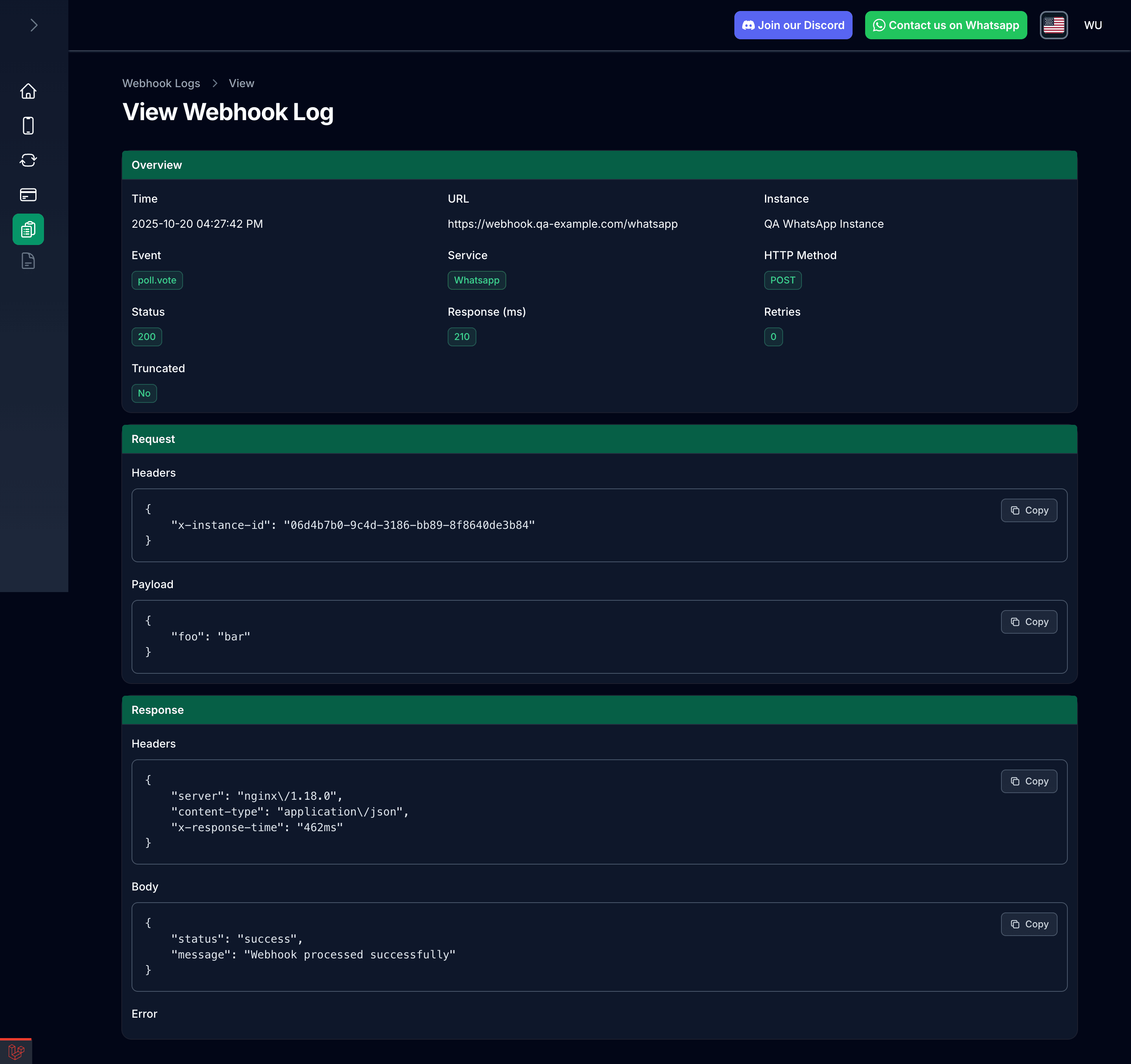
- A details view for each attempt: request headers, payload, response status/body, error message.
- One-click retries for failed deliveries, with bulk retry support when you need to catch up.
Where to find it
In your Hypersender dashboard, open Webhook Logs. You'll see the most recent events first, with pagination for larger histories. Click any row to inspect the full request/response.
How retries work
- You can retry individual failed requests or select many and retry in bulk.
- Retries are queued and rate-limited to avoid spikes and duplicate deliveries.
- We keep the original attempt intact and add a new log entry for each retry, so you always have a clean audit trail.
- To protect your endpoints, successful webhooks can be retried up to 3 times; failed webhooks up to 5 times.
Webhook Logs are kept based on your subscription plan. Higher tiers retain more history so you can investigate longer windows. If you upgrade or downgrade, your visible history adjusts automatically.
Note: Retention windows vary by plan. Check your exact limits in Subscriptions Page.
Privacy and data handling
- Logs are scoped to your account only your team can see your webhook logs.
- We store request/response metadata so you can debug quickly. Very large response bodies are truncated for performance and clarity.
- Be mindful not to include secrets in webhook payloads or responses unless necessary.
Quick start
- Set your webhook URL in your Hypersender settings (WhatsApp, SMS, or both).
- Trigger an event (e.g., send a message) to generate a webhook.
- Open Webhook Logs to watch requests come in, filter by status, and drill into details.
- If something failed, hit Retry on the entry or select multiple and retry in bulk.
That's it! Thanks!